
A packaging supplier in Vapi emails a PDF invoice to a manufacturer in Pune. Any decent OCR tool reads it in a second or two: the supplier's name, an invoice number, a date of 05/11/26 and a total of ₹1,18,000 including IGST. Then somebody in accounts payable opens SAP to post it, and SAP asks for a vendor number, a company code, a GL account, a cost centre and a tax code. None of those is printed on the invoice.
That gap is where a lot of document automation stops paying for itself. The reading is automated, and a person still looks up five codes by hand for every invoice. Intelligent document processing is only worth the name if it closes that gap and carries the PDF all the way to a record the ERP accepts without anyone retyping or recoding it.
We'll follow one supplier invoice into an ERP, because it's the document most teams start with. Purchase orders, bank statements and delivery notes go through the same stages with different fields and rules. For how IDP compares with plain OCR and newer agentic extraction, see agentic document extraction vs IDP vs OCR. If you're choosing a vendor, our guide to evaluating IDP has a test plan you can run on your own documents.
What is intelligent document processing?
Intelligent document processing (IDP) is software that works out what a business document is, extracts its fields as typed values with a confidence score on each, checks those values against arithmetic, master data and business rules, and sends only the doubtful fields to a person. What comes out is a structured record another system can use without retyping.
Most published definitions stop after extraction. We think that's the wrong place to stop. A correct extraction can still be an unusable record: the supplier's name, read exactly as printed, is perfectly accurate and of no use to an ERP that identifies vendors by number.
Where OCR and template tools stop
OCR turns pixels into characters. Template tools add a map for each supplier layout that says where the invoice number sits. Both give you text from the right place on the page. Neither can tell you whether that text is right, and neither knows anything about your chart of accounts, which is why so many "automated" AP teams still have someone keying codes into the ERP after the scan. We went into this at more length in why OCR is the wrong frame for document automation.
What ERP-ready data actually means
An ERP doesn't accept documents. It accepts transactions, built from its own master data in its own formats. A record is ERP-ready when every field the posting needs is present, typed, checked and expressed in the ERP's codes, so the ERP takes it without anyone editing it first.
Here is that invoice again, field by field.
| Field | What the PDF says | What the ERP needs | How IDP gets there |
|---|---|---|---|
| Supplier | A trading name and a GSTIN | Vendor number 100432 | Match on GSTIN, confirm on bank account, never on name alone |
| Buyer | "Plot 14, MIDC Chakan, Pune" and your GSTIN | Company code and branch or business place | Your GSTIN on the invoice identifies which of your registrations is buying |
| Date | 05/11/26 | 2026-11-05, in an open posting period | Date convention settled per supplier, then checked against the period |
| Amount | ₹1,18,000.00 | 118000.00 INR | Indian digit grouping parsed into a number |
| Line | "Corrugated box 5 ply, 1,000 nos" | PO line, material or GL account, quantity in the order's unit | Matched to the purchase order line, units converted |
| Tax | IGST 18% | The ERP tax code for inter-state input tax at 18% | Supplier state and place of supply decide IGST or CGST plus SGST |
| Order | "Your PO 4500012345 dt 28.10" | 4500012345, open, raised on this vendor | Number lifted out of free text and checked against open orders |
Only the date and the amount are mostly a matter of reading the page. The other five rows need checking against your records and translating into your codes. That's where IDP projects succeed or stall, so it's where most of this post goes.
From PDF to ERP record, stage by stage
1. Intake: collect documents where they already arrive
Suppliers email the AP mailbox they've always used. Branches scan to a shared folder. Some invoices come through a supplier portal and a few still turn up by courier. Start with those channels. Asking hundreds of suppliers to change how they send invoices is a project of its own, and rarely the one worth doing first.
Two small decisions here pay off later. Keep the original file untouched, with a hash, so you can always show exactly what arrived. And record where each document came from, because an invoice from an email address you've never seen deserves more scrutiny than one your own staff uploaded.
2. Classification: decide what the document is
The PDF a supplier sends is often three documents scanned together: the tax invoice, a delivery challan and an e-way bill. A shared mailbox also collects credit notes, statements of account and the odd quotation. Read a delivery challan as an invoice and you post a liability that doesn't exist.
Splitting combined scans
Classification runs page by page, then groups the pages back into documents. Pages one and two are the invoice, page three the challan, page four the e-way bill. Each goes down its own path. The challan isn't thrown away, either, because it can later serve as evidence of delivery when the invoice is matched.
3. Extraction: read the fields in context
Current extraction finds a field by the text and structure around it, not by fixed coordinates, so a new supplier's layout usually works the first time. Each field comes back as a typed value with its own confidence score. The per-field part is easy to overlook in a demo. A single score for the whole document can't tell anyone which field to check.
Header fields
Invoice number and date, supplier and buyer GSTINs, the PO reference, place of supply, taxable value, tax and total. On a GST e-invoice, the signed QR code also carries the IRN, both GSTINs, the invoice number, date and value. Reading the QR gives you a second source for the fields that matter most, and if the QR and the printed text disagree, someone should look.
Line items and tables that run across pages
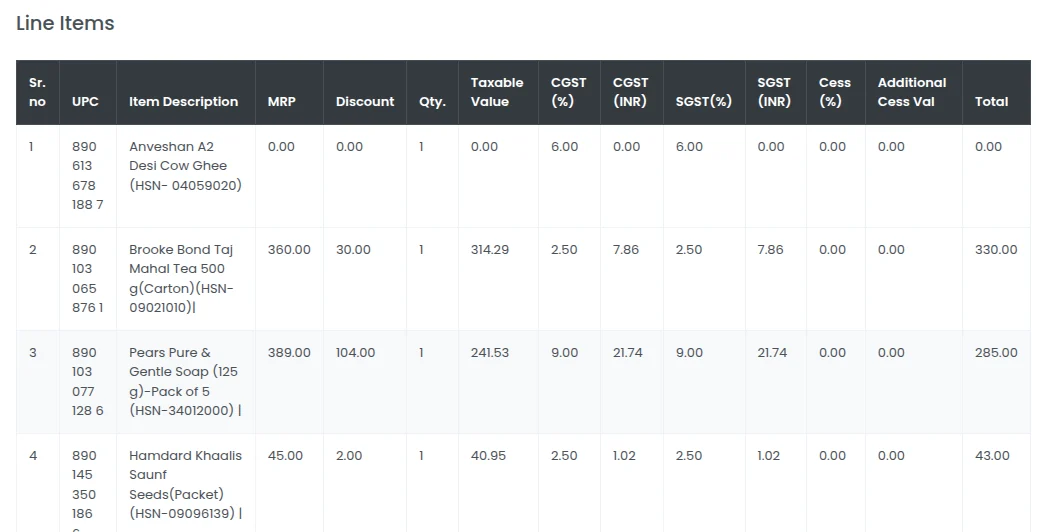
Line tables are where weaker tools fall over. Descriptions wrap onto a second line, the table continues on page three under a repeated header, and a "carried forward" subtotal sits halfway down the page looking exactly like a line item. The extractor has to keep rows as rows and know which numbers aren't lines at all.
4. Normalisation: turn printed text into typed values
Printed text is ambiguous in ways a person sorts out without noticing. Is 05/11/26 the fifth of November or the eleventh of May? It depends on the supplier, and the same AP team can see both conventions in one morning. Context usually settles it, since an invoice received on 7 November is unlikely to be dated 11 May. When context can't settle it, the field gets flagged rather than guessed.
Amounts need the same care. 1,18,000.00 is Indian digit grouping for 118,000, and a parser that expects Western grouping will choke on it or, worse, quietly misread it. Units are messier still, because "1,000 nos", "1 thousand" and "10 bundles of 100" can all be the same quantity. Everything gets settled into one format before any check runs.
5. Validation: check the values before anything is mapped
Validation asks whether a value is right, which is a different question from whether it was read correctly. A perfectly read invoice can still carry a wrong total. Every check passes, fails or couldn't be run, and the record keeps all three outcomes.
Arithmetic
Recompute each line (quantity times rate, less discount, equals taxable value), the tax on each line, the totals, and the carried-forward subtotals on a multi-page invoice. Rounding gets a tolerance you set. Anything outside it is an exception.
GST
A GSTIN has a fixed structure: two digits for the state, the holder's ten-character PAN, an entity number, usually the letter Z, and a check character. Check the format and the check character, then confirm the supplier GSTIN belongs to the vendor you think it does and the buyer GSTIN is one of yours. Then look at the tax type. Where the supplier's state and the place of supply match, the invoice should carry CGST and SGST. Where they differ, IGST. Wrong tax type on an invoice causes trouble with input tax credit later, so it's much cheaper to catch it before posting. HSN or SAC codes get checked too, against the rate you'd expect for them.
Master data
Is the vendor active and unblocked? Is the PO open, and was it raised on this vendor? Has the goods receipt been posted? Does the bank account printed on the invoice match the one in the vendor master? If it doesn't, stop. A changed bank account on an invoice is one of the oldest payment fraud signals there is, and no confidence score should let it through. We covered the permissions side of that in AI agent security.
Duplicates
Same supplier, same invoice number, same amount is the easy duplicate. The harder ones arrive with the number reformatted (INV-0042 one week, INV42 the next), or as the same invoice sent once as a PDF and again as a scan. Normalise invoice numbers before comparing them, and compare amount and date as well.
6. Mapping: translate the document into your ERP's codes
Mapping is what makes a record ERP-ready. It's also the stage most IDP demos skip, because it depends on your master data rather than the vendor's model, and your master data isn't in the demo.
Vendor
Match on GSTIN or tax number first, then confirm on bank details. Treat name matching as a last resort. "ABC Packaging Pvt Ltd", "ABC Packaging Private Limited" and "A.B.C. Packaging" are one supplier to a person and three strings to a computer. A supplier registered in several states has a GSTIN for each, and each has to land on the right vendor record, or the right registration on one record, depending on how your ERP models it.
Company code and branch
Your GSTIN on the invoice says which of your registrations is buying, and that usually decides the company code, branch or business place. Groups with several entities get this wrong more often than you'd think, especially when one shared office receives invoices for all of them.
GL account and cost centre
Invoices against a purchase order
With a PO, most of the coding comes from the order. Each invoice line is matched to its PO line, and the account, cost centre and tax treatment follow. The real work is in the matching itself: partial deliveries, a price that moved within tolerance, two PO lines billed as one. We wrote about how far that matching can go in rethinking invoice matching beyond three-way.
Invoices without a purchase order
Rent, utilities, professional fees and one-off services rarely have a PO. Their coding comes from rules you write ("this vendor with this description goes to this account and cost centre") and from how the same vendor was coded before. History should be offered as a suggestion, not applied silently. Where the history is thin or contradictory, a person decides, and that decision becomes history for next time.
Tax code
Map tax type, rate and input credit eligibility to your ERP's tax code. If the mapping isn't certain, hold the invoice. A guessed tax code is worse than a held invoice, because it posts cleanly and only surfaces months later in a GST reconciliation.
7. Review: send a person the field, not the document
Some items will always need a person. What matters is how much of each item they have to look at. A good review screen shows the field in doubt, the part of the page it came from, and why it's there: a low score, a failed check, or a line with no coding rule. The reviewer fixes that field and moves on. Nobody re-reads the whole invoice.
The auto-post threshold is your decision, and it shouldn't be one number for every field. A shaky read of the supplier's phone number doesn't matter. A shaky read of the total does. Log every correction against its field, with who made it. After a few months that log tells you which suppliers, fields and rules generate the work, which is more use to you than any accuracy figure in a sales deck. Our guide to human-in-the-loop AI covers how to set those thresholds.
8. Delivery: post, then read back
The record goes to the ERP and the ERP answers: either the document number it assigned or the reason it refused. Keep both, on the same record. A refusal (closed period, blocked vendor, missing cost centre) goes to a person with the ERP's own message attached. It shouldn't go into a retry loop, because none of those causes fixes itself.
How the record gets into your ERP
There are four routes in. Which one fits depends more on your ERP's edition and your IT team than on the IDP tool.
| Route | When it fits | What to watch |
|---|---|---|
| The ERP's own import | The ERP already has an invoice import or capture feature that takes the fields you have | Its limits become yours |
| API | The ERP exposes one, such as OData services or BAPIs on SAP, or the REST APIs on Oracle | Use one integration user with only the rights the posting needs |
| Import file | Older systems, or support contracts that only allow imports, such as FBDI loads on Oracle | Slower, and someone has to read the import report for rejections |
| Custom | Several entities or ERPs, or a migration part way through | Keep one mapping per entity and one log across all of them |
Indian groups often run more than one ledger. SAP at group level and Tally at a subsidiary is a common pairing, and it's one IDP rollout with two routes and a mapping for each entity, not two projects. When the same document has to reach an ERP, an archive and a workflow tool, it starts to look more like enterprise automation across several systems, and it should be planned that way.
Be wary of anyone who promises a "connector" before asking which version and edition you run. Posting into SAP S/4HANA Cloud is a different job from posting into an on-premise ECC system, and a Tally integration depends on the release and how it's hosted.
Why IDP projects stall after the pilot
When a rollout stalls after a good pilot, the extraction is rarely to blame. It's usually one of the following.
Master data that can't be matched
If the vendor master has three records for one supplier, or no GSTIN on half of them, mapping fails, and it fails in plain sight. Expect the first month of a rollout to clean up more master data than it processes invoices. That's a cost nobody puts in the business case, and it's also one of the more useful side effects.
Rules that nobody owns
A new cost centre opens. A supplier starts billing two services on one invoice. Somebody has to update the coding rules, and if the only person who can is at the vendor, every change becomes a support ticket. Coding rules and thresholds should be things your finance team can read and change, with an approval and a date on each change.
A pilot run on easy documents
Pilots tend to use the fifty cleanest invoices anyone could find. Production gets faxed copies, stamped pages, handwritten corrections and a supplier who has just redesigned their letterhead. Build the pilot set from what actually arrives, including the documents your current process struggles with.
How to tell whether it's working
The number vendors like to quote is the touchless rate, the share of documents that post without anyone touching them. It's worth tracking, and it's easy to inflate. Lower the confidence threshold and the touchless rate goes up, along with the number of wrong postings nobody noticed. We'd watch these alongside it:
- field accuracy on a monthly sample of auto-posted records, checked by a person against the PDF
- ERP rejections, broken down by cause
- time from receipt to posting, and how long items sit in review
- corrections per field and per supplier, from the review log
If the touchless rate rises while sampled accuracy holds, the system is improving. If only the touchless rate moves, look at what happened to the thresholds.
How PTAS AI handles the path from PDF to ERP
DocPro covers the document side. It classifies each document, extracts fields with a confidence score on every one, checks them against arithmetic, your masters and your rules, and sends a person only the fields below threshold, with the reason named. Each document becomes one JSON record with its scores and check results, and the posting fields are mapped to your vendor master, GL codes and tax codes. The record can go to your own application, out by webhook, as a scheduled file, or into your ERP. DocPro integrations sets out each route.
Where the work between document and ledger is finance work, FinSuite takes over: vendor verification, PO and goods receipt matching, GST checks, approval bands, and posting with the ERP's document number and payment status read back. The FinSuite integrations page covers SAP, Oracle, Tally and the other ledgers it posts into.
We don't claim a packaged connector for any ERP. The route for each of your systems is named during assessment, once we've seen the version you run and what your IT team will release. A DocPro rollout typically takes 4 to 12 weeks, depending on the document types, integrations and deployment in scope. It can run in the cloud region you choose, or on-premise and air-gapped where supported. More on how each stage works is on our intelligent document processing page.
Frequently asked questions
What is intelligent document processing?
Intelligent document processing (IDP) is software that works out what a business document is, extracts its fields as typed values with a confidence score on each, checks those values against arithmetic, master data and business rules, and sends only the doubtful fields to a person. The output is a structured record that another system, such as an ERP, can use without retyping.
What does ERP-ready data mean?
A record is ERP-ready when every field the posting needs is present, typed, checked and expressed in the ERP's own codes: the vendor number rather than the supplier's name, plus the company code, GL account, cost centre and tax code. The test is simple. The ERP accepts it without anyone editing it first.
How is intelligent document processing different from OCR?
OCR turns an image into characters. Intelligent document processing also classifies the document, finds fields by context, scores each one, checks the values against your rules and records, and routes exceptions to a person. OCR gives you text to interpret. IDP gives you a record with checks attached.
Can intelligent document processing post directly into SAP, Oracle or Tally?
Yes, through one of four routes: the ERP's own import, its API, a scheduled import file, or custom orchestration where several systems are involved. Which route applies depends on the ERP's version, edition and hosting, and on what your IT team will release, so it should be named per system before anything is built.
Do we need a template for every supplier?
Not with current IDP tools. Fields are found by the text and structure around them rather than by fixed positions on a page, so a new supplier's layout usually works the first time. What you do need is a vendor master that can be matched, on GSTIN or tax number, and coding rules for invoices that have no purchase order.
What happens when the ERP rejects a record?
The rejection should be stored with the message the ERP returned and sent to a person, not retried automatically. A closed period, a blocked vendor or a missing cost centre needs a decision. Once it is fixed, the same record can be sent again without reprocessing the document.