
Products · DocPro
PTAS DocPro: Agentic Document Intelligence
Turn business documents into structured, trusted data. Domain-specific AI, validation and agentic workflows make the output ready for downstream systems and decisions.

Mixed batch: invoices, receipts, statements

Scanned and classified as an invoice

Invoice · fields readClassified
Invoice number678900.99
PO number123450.98
Invoice date17 Apr 20210.97
Payment terms30 days0.96
TotalNot legibleReview
4 fields passed, 1 held for a person
- 01Received
- 02Captured
- 03Read and scored
Workflow
One pipeline for every document type
What changes per agent is the schema and the rules. What does not change is the order of operations, and where a person can step in.
The DocPro workflow
- 01 Document PDF, scan, phone photo or email attachment
- 02 Classification Invoice, receipt, statement, identity document, order or a custom type
- 03 AI understanding Layout and context read, so a new supplier format works on day one
- 04 Field extraction Header, tables and totals returned as typed values
- 05 Confidence scoring A score on every field, not one score for the document
- 06 Business validation Arithmetic recomputed, masters matched, your rules applied
- 07 Human review when required The fields below threshold, with the reason named
- 08 Structured JSON One record per document, carrying scores and validation results
- 09 Workflow, API or ERP Delivered by webhook, polled, or posted into the system of record
Review is a control step in this pipeline, not a failure state. A field goes to a person because a rule said it should, and the correction is logged against that field.
Classification comes before anything else because it decides everything after it: which fields to look for, which validations apply and which review rules are in force. A credit note read as an invoice would pass every arithmetic check and still be wrong, so the type is settled before a single field is extracted.
Human review is the seventh step and it is there by design. A field goes to a person when its score falls below the threshold you set, or when a validation fails, and the reviewer sees that field and the reason, not the whole document again. The correction is logged and the record continues down the same pipeline. Nothing about that is an error. It is the control that lets the other eight steps run unattended.
Six agents
One agent per document type
Each agent carries its own schema, its own validation rules and its own review thresholds. Open a tab to see what each one returns, then follow the link for the full page.
Line items, tax and totals, each with its own score
One invoice, as the agent returns it · Illustrative example
Thirteen fields cleared the threshold and posted. One handwritten amendment did not, so that row alone went to review.
Line tables
Rows kept as rows, across page breaks.
Recomputed totals
Lines, tax and grand total checked against each other.
Vendor resolved
Matched to your master and returned with its ID.
Expense lines out of photos, scans and forwarded mail
A creased receipt, photographed at an angle · Illustrative example
One faded field goes to a person. The other seven post. An invented tax amount would have been worse than a flagged blank.
Image correction
Skew, glare and crop handled before reading.
Flagged, not guessed
Faded print returns a blank with a flag on it.
Duplicates
The same receipt twice, caught on merchant, amount and time.
Transaction rows that prove their own completeness
Statement page 3 of 7 · Illustrative example
When that sum does not hold, the extraction is reported as incomplete rather than returned looking clean. It is usually a page that never arrived.
Any layout
Columns and date convention detected per statement.
Balance proved
Opening plus every row equals closing, on every page.
Narration parsed
UTR, counterparty and reference lifted out of free text.
Identity fields read, cross-checked and masked on the way out
Held internally against exported · Illustrative example
Masking is set per field and per destination, so a KYC reviewer and a billing system receive different versions of the same record.
Cross-check
Document values against what the applicant typed.
Expiry
Expired or expiring documents held before review.
Redaction
Masking set per field and per destination.
Orders shaped for the match that follows
One line, three documents · Illustrative example
Four cases against forty units is the same quantity once the pack size is known. That conversion is where most manual matching stalls.
Header and lines
Order number, terms and every line in issue order.
Normalised
Units and part numbers resolved to your item master.
Variances
Quantity and price differences flagged against tolerance.
No template to build, so a new document type starts from a schema and a sample
What each layer hands you
A block of text in reading order. Correct characters, no idea which of them is the invoice total.
Named fields, as long as the layout matches a template someone built. A redesign breaks it silently.
Typed fields found by context, validated against your masters and arithmetic, each carrying a confidence score and a route to review when it falls short.
The difference is not accuracy on a clean sample. It is what happens on the document nobody anticipated.
Your schema
Fields defined in business terms during onboarding.
Your rules
Validation written as rules you can read, not code.
Your route
Output delivered wherever the workflow needs it.
Output
What comes back
The left side is how a person sees an invoice. The right side is how your workflow sees it: typed values, a score per field, the validation results and the one field that went to review.
The document, as printed
The record, as returned (illustrative)
{
  "document_type": "tax_invoice",
  "invoice_number": "MC-2026-04871",
  "invoice_date": "2026-08-14",
  "vendor_name": "Meridian Components",
  "vendor_id": "V-1180",
  "po_reference": "PO-88214",
  "taxable_amount": 229000.00,
  "gst_amount": 41220.00,
  "total_amount": 270220.00,
  "line_count": 14,
  "confidence": {
    "invoice_number": 0.99,
    "invoice_date": 0.98,
    "vendor_name": 0.97,
    "taxable_amount": 0.99,
    "gst_amount": 0.99,
    "total_amount": 0.99,
    "lines[8].quantity": 0.71
  },
  "validation": {
    "totals_recompute": "pass",
    "vendor_master": "matched",
    "gstin_format": "pass"
  },
  "review": ["lines[8].quantity"]
}
Dashboard
What your team sees when they log in
Every document type gets a card on the DocPro dashboard. One look at a card tells you what has arrived and what still needs a person.
The DocPro dashboard, annotated
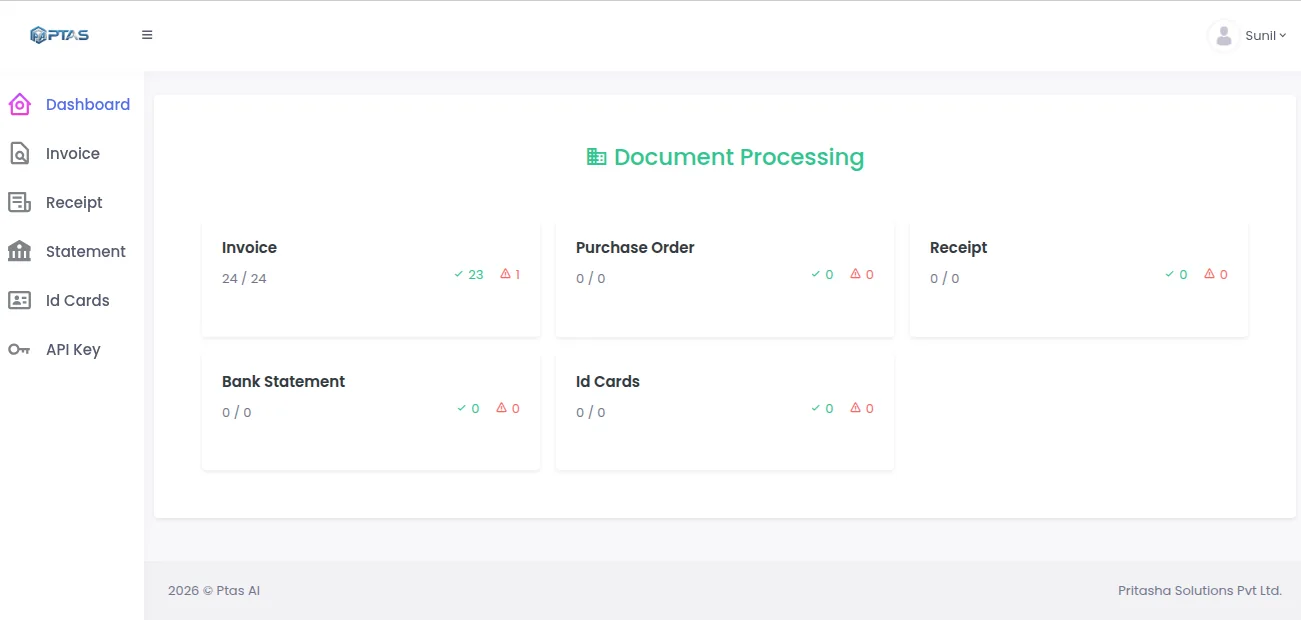
- Queues by typeThe menu opens a queue for invoices, receipts, statements and ID cards. Each queue lists every upload with its time and status.
- One card per agentInvoice, Purchase Order, Receipt, Bank Statement and ID Cards each report on their own card, so you can see which type is busy without running a report.
- Processed of received24 / 24 means every invoice that arrived has been through the pipeline. A gap between the two numbers is work still in progress.
- Passed✓ 23 came back with status Success.
- Held for a person⚠ 1 failed. It stays in the invoice queue, marked Failed, until someone reviews it.
- API keyDevelopers create keys here for the DocPro API, so documents can come straight from your own systems instead of being uploaded by hand.
Following up the flagged invoice
- 01 Dashboard ⚠ 1 on the Invoice card
- 02 Invoice queue The row marked Failed, with its upload and update times
- 03 Invoice details Fields read from the document, shown beside the original
Screen captured from DocPro, personal details masked. The counts come from this capture and are not a customer result.
Trust model
AI automation with control built in
Five stages sit between a model output and an action in your systems. Each one can stop the record, and each one leaves a trace.
-
01
Confidence
-
02
Validation
-
03
Human review
-
04
Audit
-
05
Action
Score → Check → Person where needed → Log → Act
How the controls are enforcedControls
What every agent ships with
On supported standard document formats DocPro reaches 95–98% field-level accuracy. On degraded scans and unusual layouts the figure is lower, and the confidence scores say so field by field. That is the reason the controls below exist.
Field-level confidence
Every value carries its own score. A document is never ninety per cent right; a field is, and the record says which.
Validation
Totals recomputed, dates checked for order, identifiers checked for format, all before the record leaves the platform.
Business rules
Tolerances, mandatory fields and routing written as rules you can read and change without a release.
Human-in-the-loop
A reviewer sees the field in doubt and the reason. The correction is captured, logged, and the record carries on.
Audit logs and replay
Who read what, what the model returned, what a person changed and when. Replay of a run where the deployment supports it.
API delivery
Submit by REST, receive by webhook or poll. The reviewed record arrives the same way, so your system gets one final answer.
Real-time and batch
One document in seconds, or a folder of thousands overnight, through the same extraction and the same rules.
Deployment options
Cloud, private cloud, or on-premise and air-gapped where supported, with retention set by your policy.
Ways in and out
Getting documents in and data out
Three pages for the people who have to connect it, secure it and sign it off.
DocPro API
01What you send, what comes back, webhooks, and how a reviewed record reaches your system.
DocPro Integrations
02Native, API, file and custom routes into the systems the output has to reach, scoped during assessment.
DocPro Security
03Access control, retention, redaction and deployment choices for document data.
FAQ
Questions Teams Ask
How is DocPro different from OCR?
OCR converts pixels to characters and stops. DocPro settles what the document is, reads fields in context rather than from fixed coordinates, checks the values against your masters and arithmetic, and flags what it is unsure about. The output is typed, scored data rather than a block of text someone still has to interpret.
Do we need a template for every supplier layout?
No. Fields are located by structure and context, so a supplier you have never sent us works on the first document, and one who redesigns their invoice keeps working. Where a change genuinely reduces confidence, those fields route for review and the log tells you which supplier changed.
What does a confidence score mean, and who sets the threshold?
Each score is the model's estimate for one field on one document, between 0 and 1. You set the threshold per field and per document type during onboarding: a grand total might need 0.98 to post unattended while a remarks field can pass at 0.80. Fields below threshold route to review; the rest proceed. Moving the threshold changes how much a person sees, not what the agent extracts.
What happens to a document that needs review?
The fields in doubt are held, with the reason: faded print, a handwritten amendment, a total that does not recompute. A reviewer settles those fields in the queue, the correction is logged against the field, and the completed record is delivered the same way an unattended one would have been. Review is a control you configure, not a failure of the extraction.
Where does our data live, and for how long?
In the deployment you choose: cloud, private cloud, or on-premise and air-gapped where supported. Documents and extracted data are held for the period your retention policy sets and then removed, with the deletion logged. Field-level redaction on export is available for identity data and any other field you classify as sensitive.
Keep reading
Related Capabilities
DocPro + FinSuite
What happens to the record after DocPro returns it: match, approve, post, pay, audit.
Read more →FinSuite
The finance operations product that consumes DocPro output.
Read more →Document Data Extraction
The business problem, framed as a solution rather than a product.
Read more →Test Your Document
Upload one of your own and read the fields and scores it returns.
Read more →Intelligent Document Processing
What IDP means in practice, and where DocPro fits in a document workflow.
Read more →Next step
Send a document you would not expect it to read
The multi-page invoice, the faded receipt, the scanned statement. Compare the fields and the scores against what you know is on the page.